
Advanced filters
Advanced Filters let you build precise, multi-condition queries to surface exactly the data you need — without writing code.
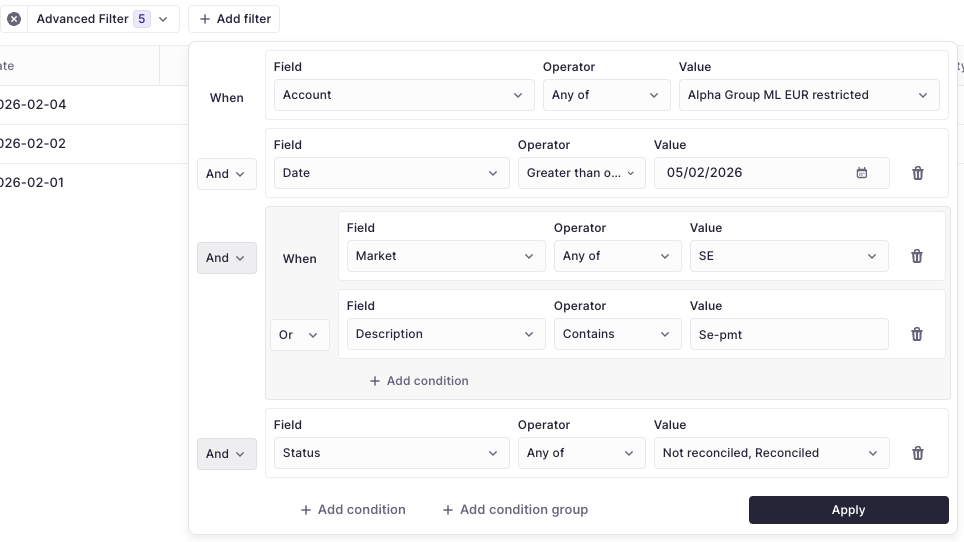
When standard filters aren't enough, Advanced Filters give you full control over how data is queried. You can combine multiple conditions with AND/OR logic, nest condition groups for complex expressions, and share your filters via URL.
Availability
Advanced Filters are available across the platform anywhere you see a list of resources, including:
- Transactions
- Credit Transfers & Direct Debits
- Mandates & Counterparties
- Balances & Accounts
Getting Started
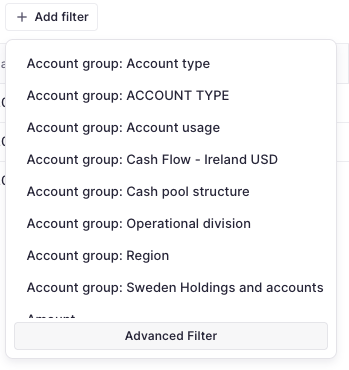
To open the Advanced Filter, click Add filter on any supported page and select Advanced Filter. A panel will appear where you can:
- Add conditions: Each condition consists of a field, an operator, and a value.
- Add condition groups: Nest conditions inside groups with their own AND/OR logic.
- Apply: Click Apply to execute your filter against the dataset.
Condition Groups
For more complex queries, use condition groups to nest conditions with independent logic.
- Top-level logic: Choose AND or OR to connect all top-level conditions and groups.
- Nested groups: Each group has its own logical operator, allowing you to mix AND/OR logic within a single filter.
Example Scenario
To find credit transfers that failed and were either high-value OR originated from a specific market:
| Level | Logic | Condition |
|---|---|---|
| Root | AND | Status equals Failed |
| Group | OR | Amount greater than or equal to 10,000 EUR |
| Market equals FR |
Result: This returns only failed credit transfers where the amount is at least 10,000 EUR or the market is France.
Building Conditions
Each condition targets a specific field and evaluates it using an operator and value. The available operators depend on the field type selected.
Text Fields
| Operator | Description |
|---|---|
| Contains | Field value contains the given text |
| Does not contain | Field value excludes the given text |
| Equals | Field value matches exactly |
| Does not equal | Field value does not match |
| Starts with | Field value begins with the text |
| Ends with | Field value ends with the text |
Select Fields (Single Value)
| Operator | Description |
|---|---|
| Equals | Field matches the selected value |
| Does not equal | Field does not match the selected value |
Multi-Select Fields
| Operator | Description |
|---|---|
| Any of | Field matches any of the selected values |
| None of | Field does not match any of the selected values |
Amount Fields
| Operator | Description |
|---|---|
| Greater than or equal to | Amount is at or above the given value |
| Less than or equal to | Amount is at or below the given value |
Tip: Amount filters include a currency selector, so you can filter by both value and currency simultaneously.
Date Fields
| Operator | Description |
|---|---|
| Greater than or equal to | Date is on or after the given date |
| Less than or equal to | Date is on or before the given date |
Sharing and Persistence
Applied Advanced Filters are stored directly in the page URL. This allows you to:
- Bookmark a filtered view to return to it later.
- Share the URL with colleagues so they see the exact same filtered results.
Note: If a shared URL contains an invalid filter (e.g., referencing a field that no longer exists), the filter is automatically removed, and you will see a notification explaining why.
Pro Tips
- Incomplete Conditions: Only complete conditions (with a field, operator, and value all set) are included in the query. You can start building a filter without affecting results until you're ready to apply.
- Combine with Standard Filters: Use Advanced Filters together with standard filters. Standard filters (like date range or account) can narrow the dataset before your advanced conditions are evaluated.
Updated 8 months ago