
Agents
Agents are embedded in workflows and provide you with reports
Prerequisite: Ensure "Agents" permissions are enabled in your Access Group before starting.
Agents act as automated AI assistants that monitor your financial data and generate insights based on your specific needs. Agents can be set up under User Management => Agents, and can be scheduled to run reports automatically and deliver them directly to your notification Inbox.
Currently, you can deploy a specialized Cash Position agent. While based on a template, this agent allows for custom instructions, letting you tailor the tone, focus, and detail of the reports it generates.
Creating an Agent
To set up a new agent, navigate to Settings → User Management → Agents and click Create new.
You will configure the following settings:
- Name: Give your agent a recognizable name.
- Role: Select the specialized role (e.g., Cash Position).
- Frequency: Determine how often the agent should run and generate a report.
- Custom Instructions: This is where you tailor the output. You can provide specific context or requirements that the agent will take into consideration when constructing the report.
Linking to Notifications
When creating an agent, you determine how the generated reports are delivered. This uses the notification engine to alert users when a report is ready.

- Targeted: Choose this if you want the report to go to specific users or emails (e.g., the CFO).
- Subscribable: Choose this to make the report notification available for all users to opt-in via their Profile.
Tip: If you want to make the reports an optional opt-in for the wider team, select Subscribable. This ensures only interested users receive the alerts.
Managing Agents
To view your existing agents, go to the Agents tab under user management. Double clicking on an agent (or clicking the arrow for Details) opens a detailed view with three tabs:
- Details: View and edit the agent's configuration.
- Executions: A historical log of every time the agent ran and generated a report as well as a possiblity to view past reports.
- Notification Setup: View the notification rules attached to this agent.
Actions
By clicking the Actions dropdown in the top right of an agent's profile, you can:
- Edit: Update the instructions or frequency.
- Disable: Pause the agent without deleting the history.
- Delete: Permanently remove the agent.
Viewing Reports (The Inbox)
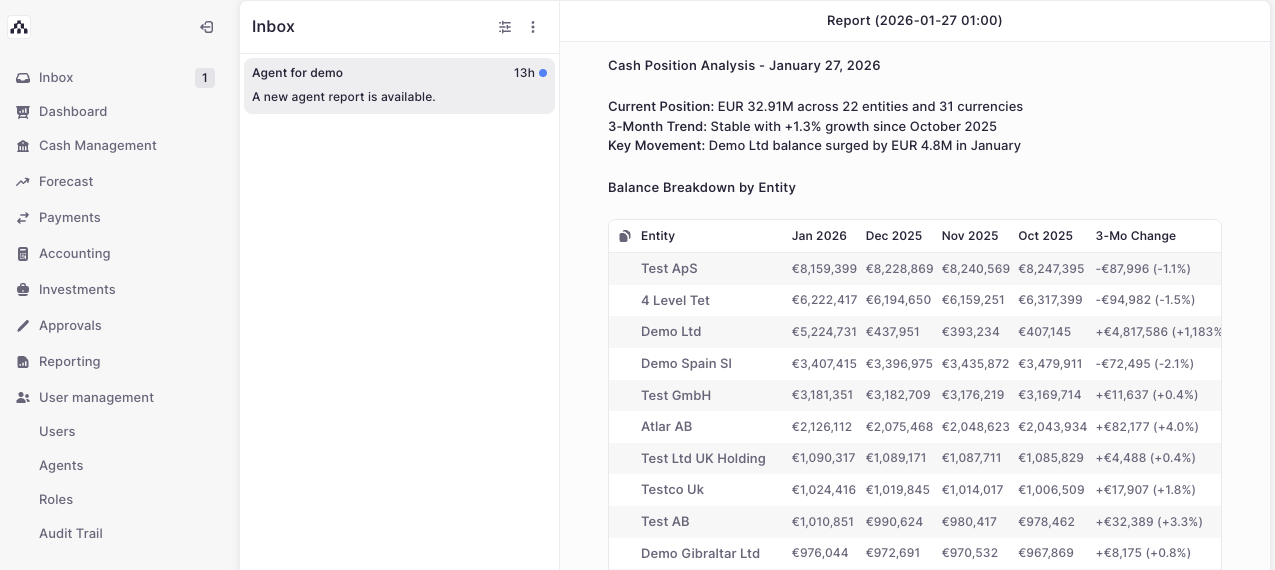
When an agent runs successfully, the report can be delivered to the Inbox (based on your notification settings). This provides a centralized view where you can read the automated insights without leaving the platform.
Permissions
Agents
These permissions control the configuration of the agents themselves.
- READ: View the Agents page, see the list of agents, and access agent details.
- CREATE: Create new agents from templates.
- UPDATE: Edit agent configurations or enable/disable agents.
- DELETE: Delete agents.
Agent executions
These permissions control access to the historical reports generated by the agents.
- READ: View the "Executions" tab on an agent's details page to see the history of runs.
- CREATE / UPDATE / DELETE: Currently not used in the UI.
Recommended Configurations
- Basic User (Monitoring only):
- l_Agents:_ READ (View agents and configuration)
- Agent executions: READ (View execution history)
- Admin (Full configuration):
- Agents: READ, CREATE, UPDATE, DELETE (Full agent management)
- Agent executions: READ (View execution history)
Data Privacy & Model Training
Security is built into the core of the AI Agent.
- No Training on Data: We do not use any of your data to train the model.
- Role-Based Access: The Agent operates strictly within the boundaries of your existing permissions given. It is not possible for an Agent to surface data in a report that you would not otherwise have access to.
- Data Residency: The AI model (LLM) runs entirely on AWS in Europe. Our data processing agreement and third-party policies remain unchanged. No data leaves AWS — just like before.
Updated 9 months ago