
Atlar MCP server
The Atlar MCP server lets you interact with the Atlar platform and your Atlar data directly from Claude.
Atlar is available as an official connector in Claude's Connector Directory, so most users can connect in a couple of clicks — no manual server URL required.
What is MCP?
Model Context Protocol (MCP) is an open standard that lets AI applications and agents securely access external data sources and tools. The Atlar MCP server gives AI agents:
- Direct API access to Atlar functionality
- Documentation search capabilities
- Real-time data from your Atlar account
What you can do with it
Once connected, you can ask Claude things like:
- "What's my current balance across all accounts?"
- "Show me transactions from the last 7 days for [account]."
- "List any pending direct debits awaiting approval."
The agent inherits the exact same permissions as the authorizing user, so what Claude can see and do is scoped to that person's access in Atlar.
Set up for your organization (admin, one-time)
Connecting Claude to Atlar requires an admin to first allow it at the organization level.
-
Update your organization's security settings.
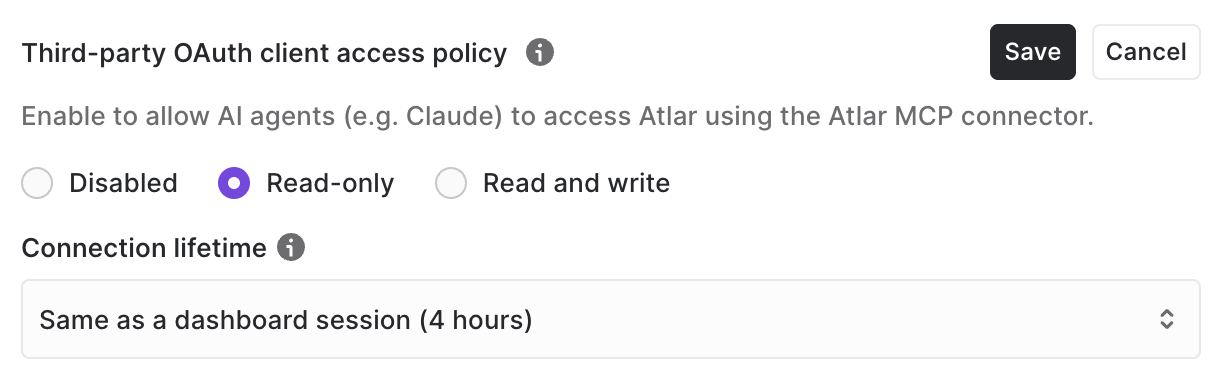
This is a sensitive operation requiringorganization:updatepermission (typically reserved for the Owner of the Atlar organization).In Atlar, navigate to Organization Security Settings (Settings → Security → Organization Security). Select desired access policy under Third-party OAuth client access policy (default is disabled, i.e. no access).
-
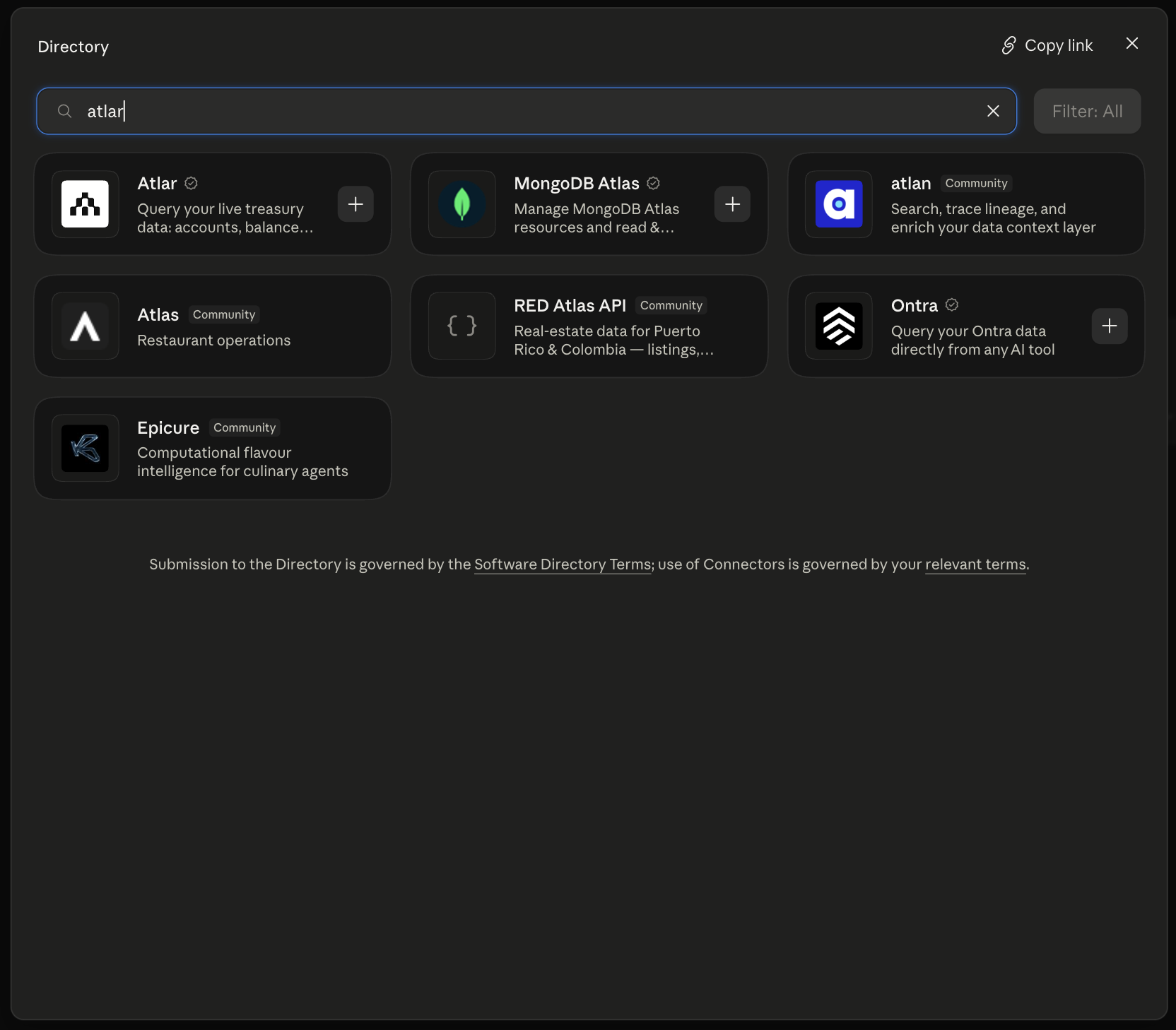
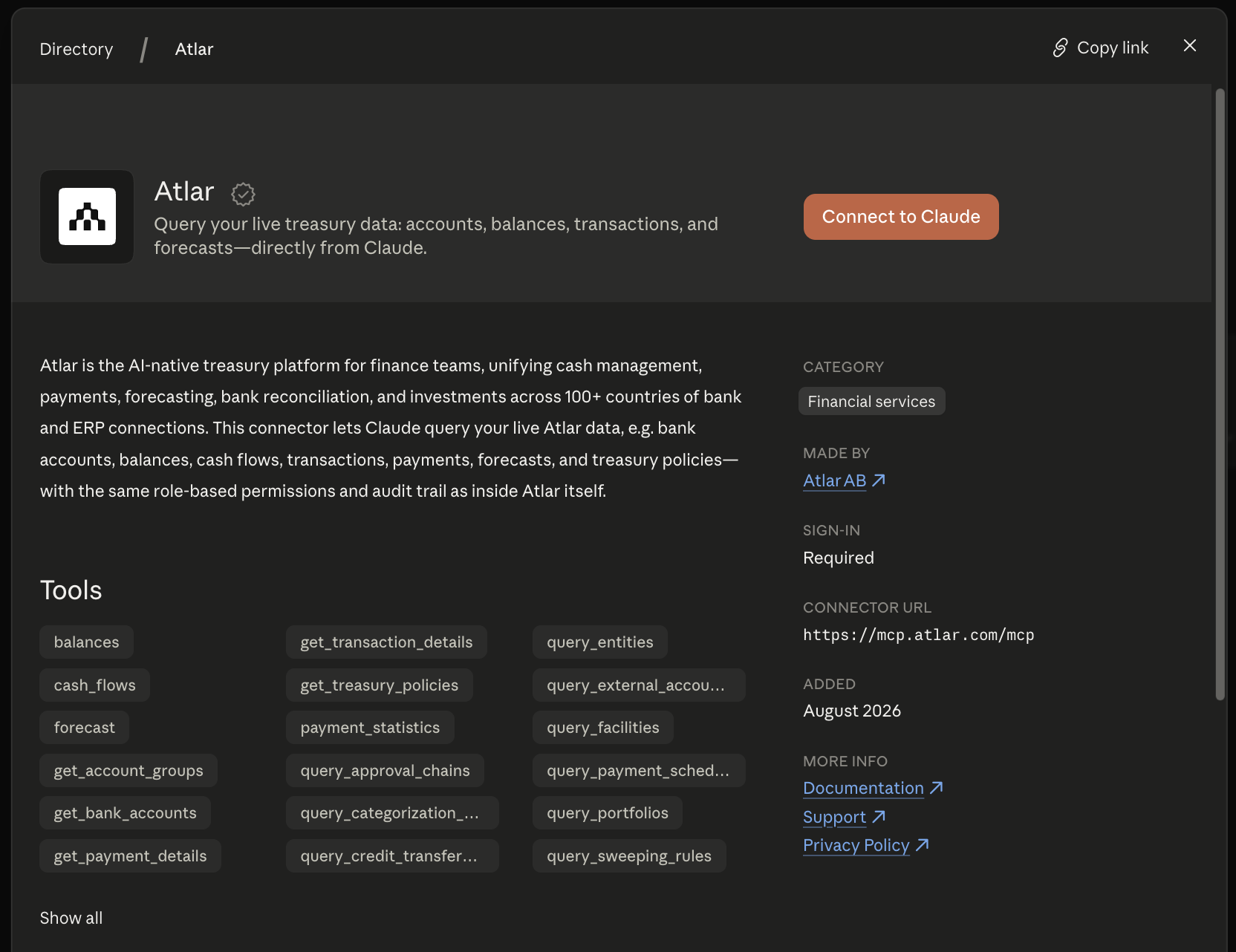
Find the connector is visible in Claude's directory.
Because Atlar is listed in the Claude Connector Directory, most Anthropic Team/Enterprise admins don't need to add a custom connector manually — it can be enabled directly from the directory. (If your Claude plan or admin settings require enabling directory connectors org-wide first, do that here.)If you ever need to add it manually as a custom connector instead (e.g. on a plan without directory access), use the remote server URL:
https://mcp.atlar.com/mcp
Connect your account (each user)
-
In Claude, go to Settings → Connectors, or open the Atlar connector page directly.
-
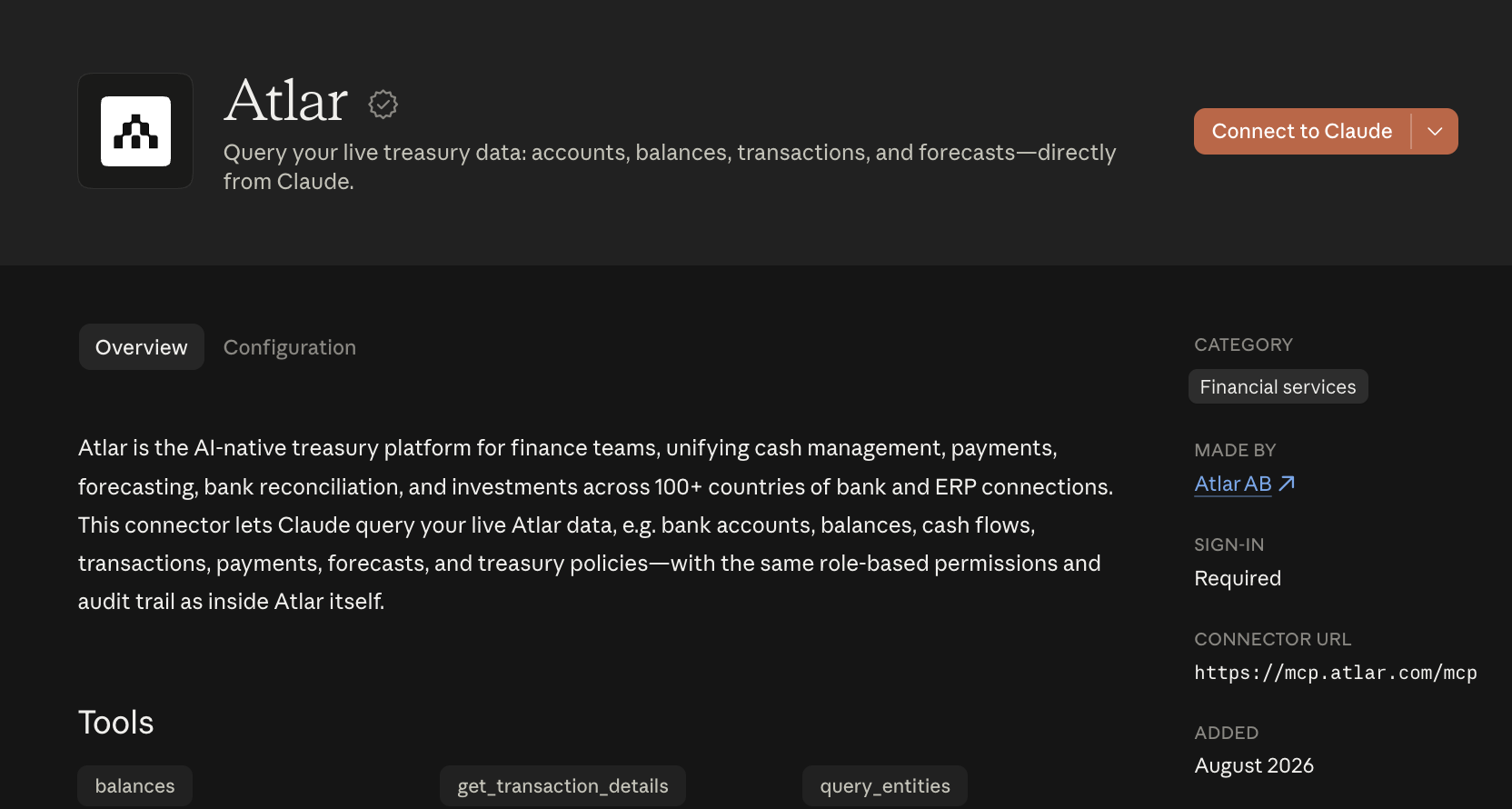
Click Connect to Claude.
-
You'll be redirected to the Atlar Dashboard to complete OAuth. Here you can choose to allow Claude read-only access or read/write access (e.g. creating payments), depending on your organization's security posture.
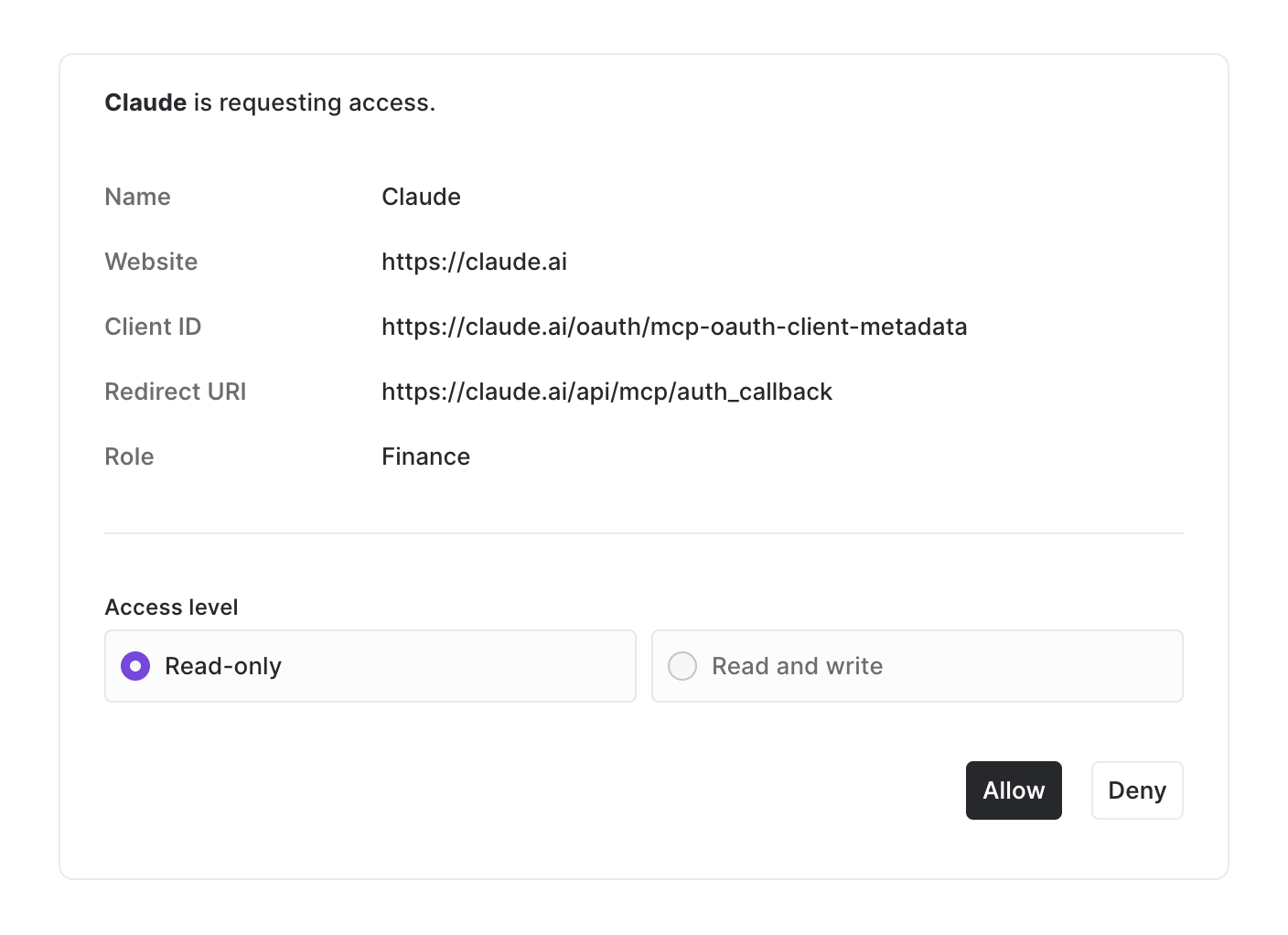
Note: If your organization's third-party OAuth client access policy is set to Disabled, you'll be denied permission to connect until an admin updates it (see setup steps above).
-
Click Allow to complete authorization. You'll be redirected back to Claude, and Atlar will now appear as a connected tool.
-
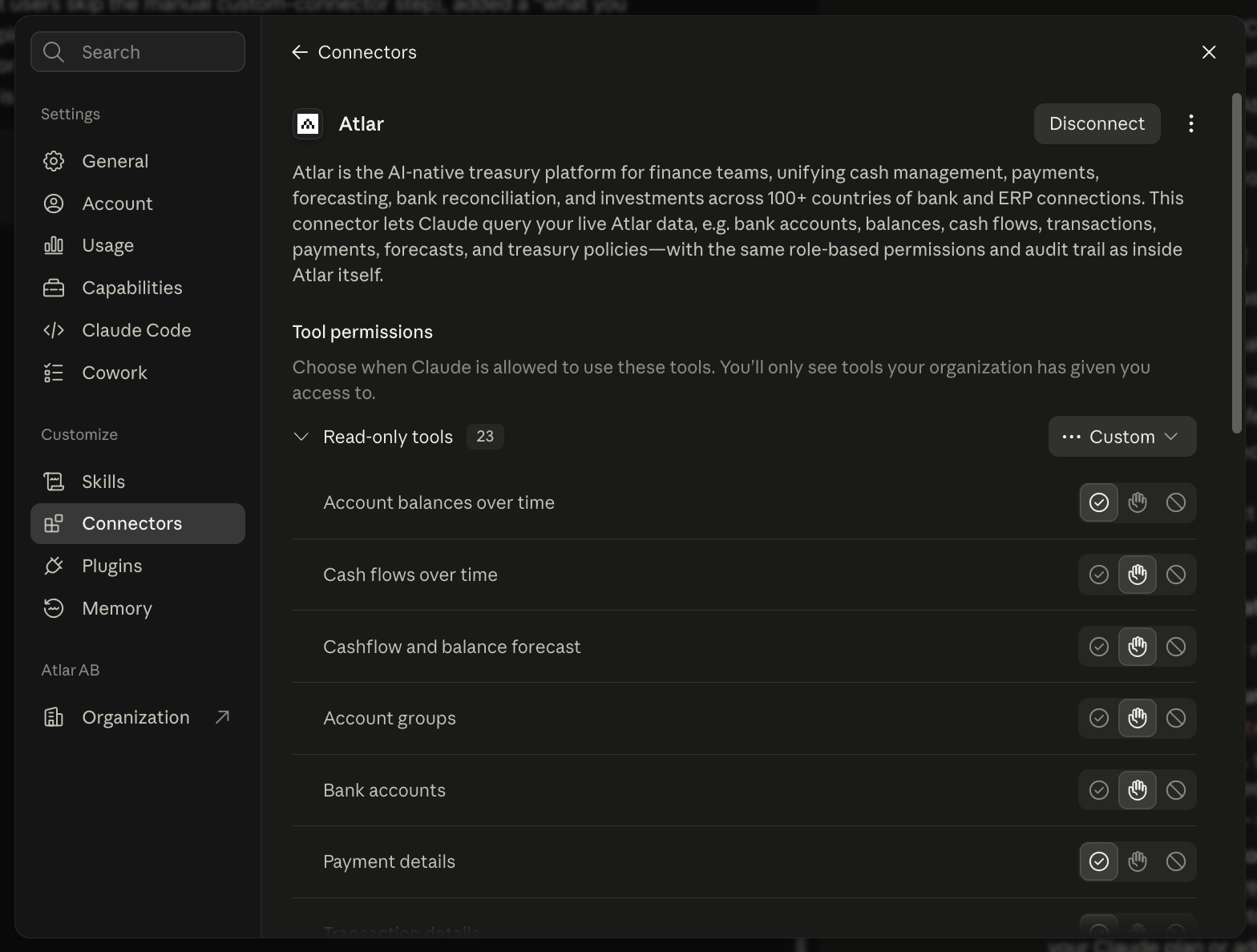
On the connector page, you will be able to adjust the settings of the connector as well as see what it can do and what data it has access to.
Verifying your MCP setup
Once configured, you can test your MCP server connection:
- Open your MCP client (e.g. Claude.ai or Claude Desktop)
- Start a new chat with the AI assistant
- Ask about Atlar — try questions like:
- "What are my current balances across all accounts?"
- "List my accounts"
The AI should now have access to your Atlar account data and documentation through the MCP server.
Consent management
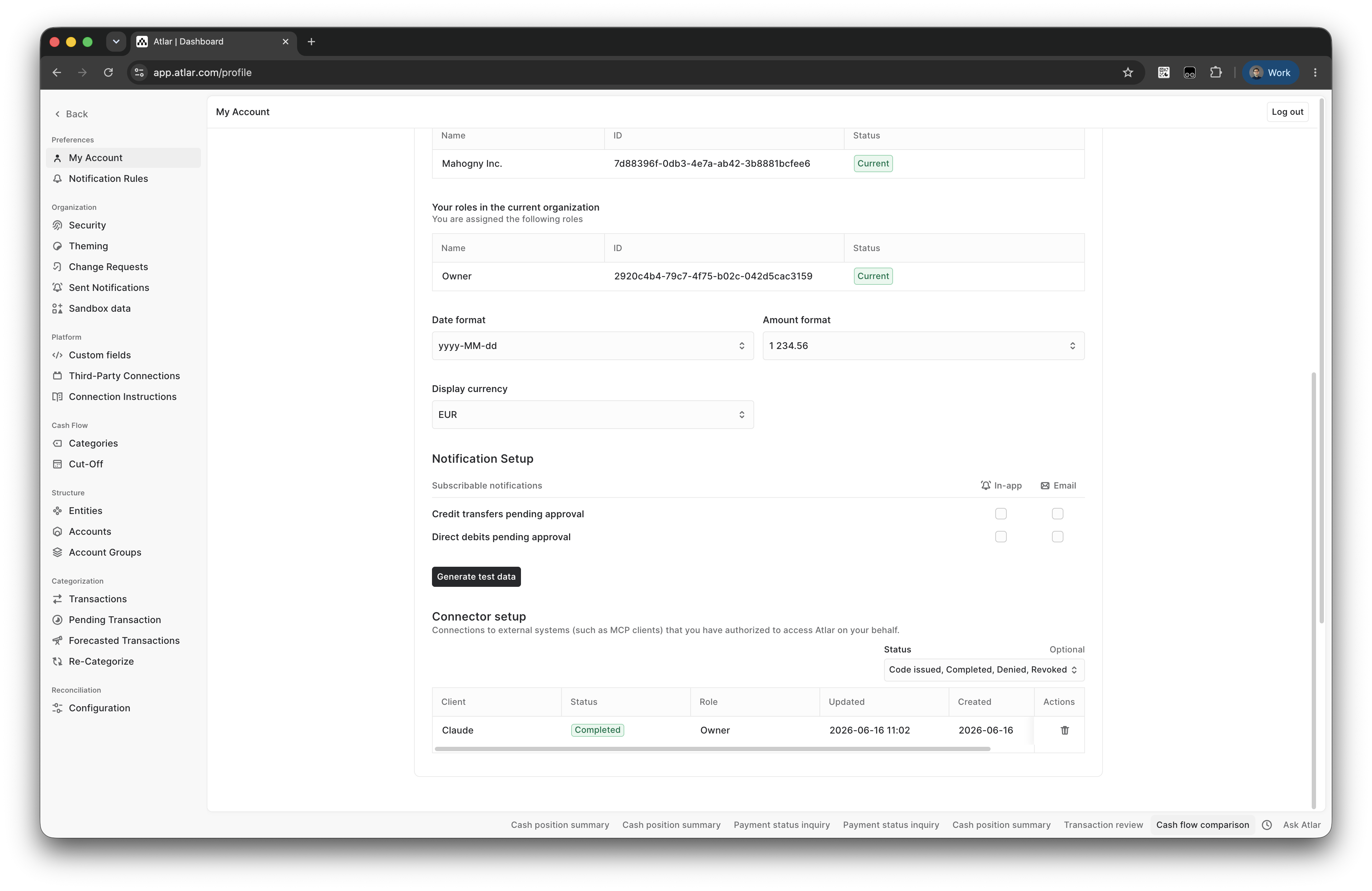
If you want to revoke your granted consents you can list and manage your outstanding grants at https://app.atlar.com/profile.
Organization-level access policy
Before any user in your organization can connect an AI agent via MCP, an organization owner or admin must enable the third-party OAuth client access policy. The policy is disabled by default.
To configure it, go to Settings → Security and locate the Third-party OAuth client access policy section. There are three options:
| Setting | Description |
|---|---|
| Disabled | No AI agents can access Atlar via the MCP connector. This is the default. |
| Read-only | AI agents can read data from your Atlar account but cannot create, update, or delete resources. |
| Read and write | AI agents have full API access, scoped to the permissions of the authorizing user's role. |
When enabled, any user in your organization can authorize an MCP client. The connected agent's access is limited by both the authorizing user's role and this policy. For example, if the policy is set to Read-only, an agent cannot perform write operations even if the authorizing user has a role that would normally allow them.
When Read-only is enabled, a Connection lifetime can be configured. It specifies after which period, the MCP connection (e.g. from Claude) expires and must be re-authorized. This applies whether or not the connection is in active use. By default and when Read and write is enabled, the setting is the same as a dashboard session.
MCP and OAuth 2.1 security
The Atlar MCP server is in compliance with general MCP Authorization requirements as outlined in https://modelcontextprotocol.io/specification/2025-11-25/basic/authorization . This means, non-exhaustively:
- Support for OAuth 2.1
authorization_codegrant flows with PKCE. - Support for OAuth Client ID Metadata Documents (CIMD). Allow-listed clients only, e.g. only official Claude.ai + Claude Code clients.
- Access tokens for the MCP clients are constrained to
mcp.atlar.comvia audience claim. I.e. no direct access token passthrough to the Atlar REST APIapi.atlar.com.
Troubleshooting
- I don't see Atlar in the connector directory. Confirm your Claude plan supports directory connectors, and that an org admin has enabled it if required.
- I get denied during OAuth. Ask your Atlar organization owner to check the Third-party OAuth client access policy under Security Settings.
- Claude can't perform an action I expect. Check the permission level you granted during OAuth (read-only vs. read/write) — Claude can only do what the authorizing user is allowed to do.
The Atlar MCP server enables you to interact with the Atlar platform and your Atlar data via Claude and Claude Desktop .
Updated 14 days ago